
If you select a single production orders in the Production orders module table, above the table, more actions become available via the More actions button  .
.
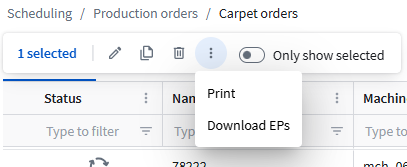
The availability of these actions depends on the Status of the selected production order.
| Update quantity | These buttons are only available for production orders that are send to the machine and for remote machines. See Adjusting the produced quantity of a PO for more information. |
| Mark as produced | |
| Print information about the order and the paths. See What can I see on the print? | |
| Error details | If an order has an error (red Status icon), you can click this to see details about the error. |
| Confirm | Plan the order. If the design dimensions were updated in ERP, you will see the Update dimensions popup. For more information, see the article Updating design dimensions via ERP. |
| Download EPs | Download the EP files of the order (in a ZIP). Orders that are are not yet processed cannot be downloaded because they are not yet processed. |
| Remove files | Manually delete the files on the loom. This can only be selected if the order is completed entirely or partially. Also note the Delete policy for files on the loom. See Carpet orders custom settings. |
| Complete | In case of a remote machine, you can mark the carpet order as completed here. |
| Complete partially | In case of a remote machine, you can mark the carpet order as partially complete here, by entering the number of woven items of each order line. |