
In normal circumstances, Connect automatically receives production feedback from the carpet machine and updates the produced quantities of a production order accordingly. Based on this information, Connect also calculates the quantity still to be produced for each order line.
Their might be a discrepancy between what the machine reports as woven, and what the planner considers as woven, or the machine may not be available at all (for example in case of remote machines).
To handle these cases, Connect allows users to manually adjust the produced quantity of a production order or to mark an order as fully produced.
This article explains how to use these options.
Typical use cases
Here are two typical examples where this feature can be used.
Carpets with cutbars
Some production orders contain carpets separated by cutbars. Cutbars are small designs used only to separate carpets so they can be cut apart.
Connect counts a carpet as produced only when the entire carpet and the subsequent cutbar have been completed. If the carpet is finished but only part of the cutbar is produced, Connect does not register the carpet as completed.
From a production point of view, this is usually not an issue: a partially produced cutbar is sufficient, and the preceding carpet can be considered complete. In this situation, the produced quantity in Connect will be lower than the actual output.
To correct this, the user can manually update the produced quantity of the order so that Connect reflects the real number of carpets produced.
Note: Another similar example is with path labels.
Additional production on a remote machine
Additional carpets can be produced directly via the HMI of the machine.
If the machine is a remote machine (for example, when production orders are transferred via USB stick), Connect does not receive any production feedback from the machine. As a result, Connect may still show the order as not produced and the actual produced quantity is unknown to Connect.
In this case, the user can manually inform Connect that the order has been produced and, if needed, specify the correct number of carpets that were made.
How to update the produced quantity
Connect provides two buttons to adjust or confirm production, depending on the situation. These buttons are available for orders that are send to the machine and for remote machines.
Button: Update quantity
Use this option when you want to manually correct the produced quantity of a production order.
- Open the Production order module.
- Select one production order.
- In the button bar on top, click More actions
 and then Update quantity.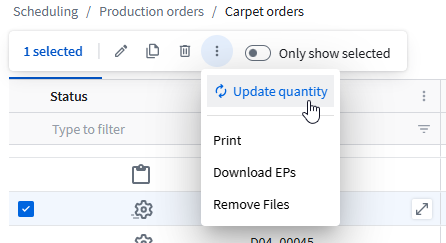
The Verify step of the production order opens with a list view showing all paths and orders within the paths.
For each order line, a Quantity field is available. - Click the Quantity field of an article to edit the value to reflect the actual number of carpets produced.
The status of the article becomes Changed. Example: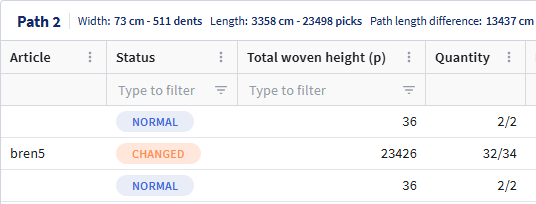
- Point to the down arrow of the Save button and then click Save and mark as produced.
After saving, Connect updates the produced quantity and the quantity still to be produced for the order line.
Button: Mark as produced
Use this option to confirm that the order has been completed, without adjusting specific produced quantities.
- Open the Production order module.
- Select one production order.
- In the button bar on top, click More actionsand then Mark as produced to mark the entire production order as fully produced.
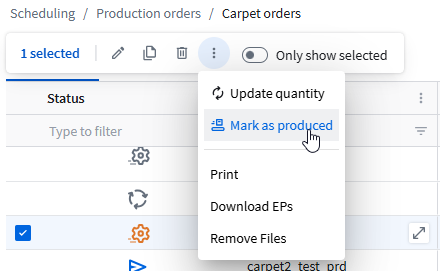
The order status is updated to produced.
Note: If you have clicked Update quantity, but do not want to change quantities but only confirm the order as produced, you can point to the down arrow of the Save button and then click Save and mark as produced.