The Connect Admin module allows users to view all administrative information related to your Connect account, while administrators also have the ability to edit certain information.
Definitions
Administrators and users
For a new Connect account, BMSvision creates at least one user who is designated as the company administrator, and, if agreed with the customer, additional users may also be added. The company administrator has access to all subscriptions.
The company administrator’s initial tasks are (if not already completed by BMSvision):
- Add users to the subscriptions. See Managing users for instructions.
- Optionally change a normal user into a subscription administrator and vice versa. See Managing users for instructions.
A subscription administrator is the administrator who is responsible for a subscription. There can be more than one such administrator per subscription. The subscription administrator’s tasks are:
- Sign the terms and conditions. See Signing terms and conditions for instructions.
- Add users to the subscription. See Managing users for instructions.
- Limit the features each user can access. See Managing users for instructions.
- Order credits (is being phased out; only available for some customers). See Wallets - Adding credits for instructions.
- Optionally change a normal user into a subscription administrator and vice versa. See Managing users for instructions.
Normal users can view information, but cannot make changes.
Note: Company administrators can also sign terms and conditions and manage users of all subscriptions.
Companies and subscriptions
Most Connect accounts have one Company with one Subscription.
International customers can have multiple companies for their different production plants, or a different subscription per plant. A company can also have multiple subscriptions to separate different production workgroups, machine types, or for a subscription for testing purposes.
Opening Connect Admin
Open Connect Admin with this link: https://admin.texconnect.io/
In the top right corner, you see your user name. When you hover, you see your e-mail address and the features that you have. You can also Logout here.
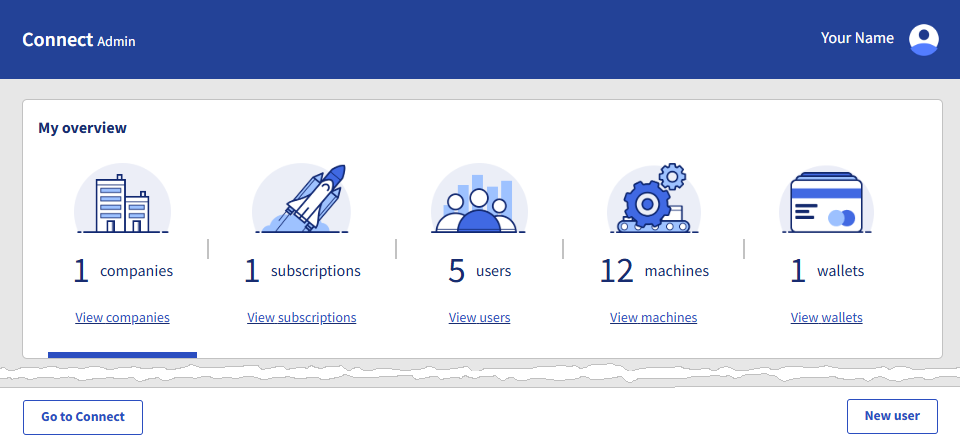
Connect Admin consists of different views with information about your Connect account. In My overview, click a View ... button to open a view.
With the buttons at the bottom, you can Go to Connect (left side) and create a New user (right side).
Connect Admin views
Companies
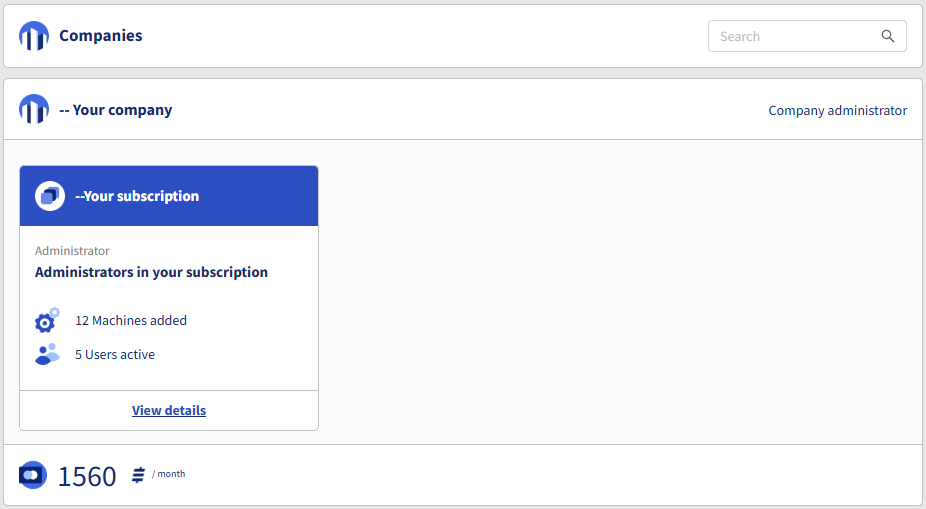
- The header shows the name of the company (left side) and the company administrator (right side).
- The middle section shows a box per subscription with:
- Name of the subscription.
- Names of the subscription administrators.
- Number of machines.
- Number of active users.
- You can click View details which is the same as clicking a subscription in the Subscriptions view.
- The bottom line shows the amount of credits that the company uses (if you work with credits).
Subscriptions
Click a subscription to see:
- Subscription details:
- The Name and Timezone of the Connect subscription can be changed.
- Shows the name of your Company and the Last activity.
- Terms and conditions: The company administrator can here view the signed terms and conditions with the sign date.
- Users: Lists the users. Subscription administrators are marked with a star
 .
.
Click the Edit button to see user details. Administrators can change a user into a subscription administrator or vice versa, and define features for users.
 - Machines: Lists the machines that are included in your Connect account are added by BMSvision according your contract with BMSvision.
- Applications: Lists additional applications that are integrated in your Connect account according your contract with BMSvision.
- MES modules: Lists the features that are included in your Connect account according your contract with BMSvision.
- The bottom line shows the amount of credits that the subscription uses (if you work with credits).
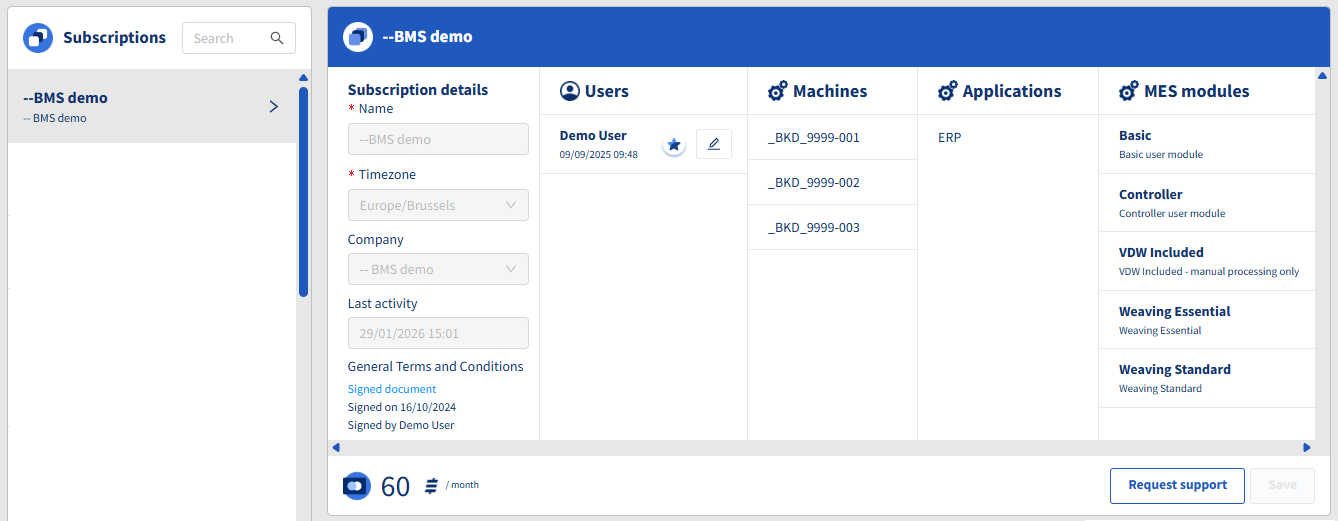
The button Request support (visible by administrators only) is used by our service engineers.
If you need support, create a ticket (see How to create a ticket).
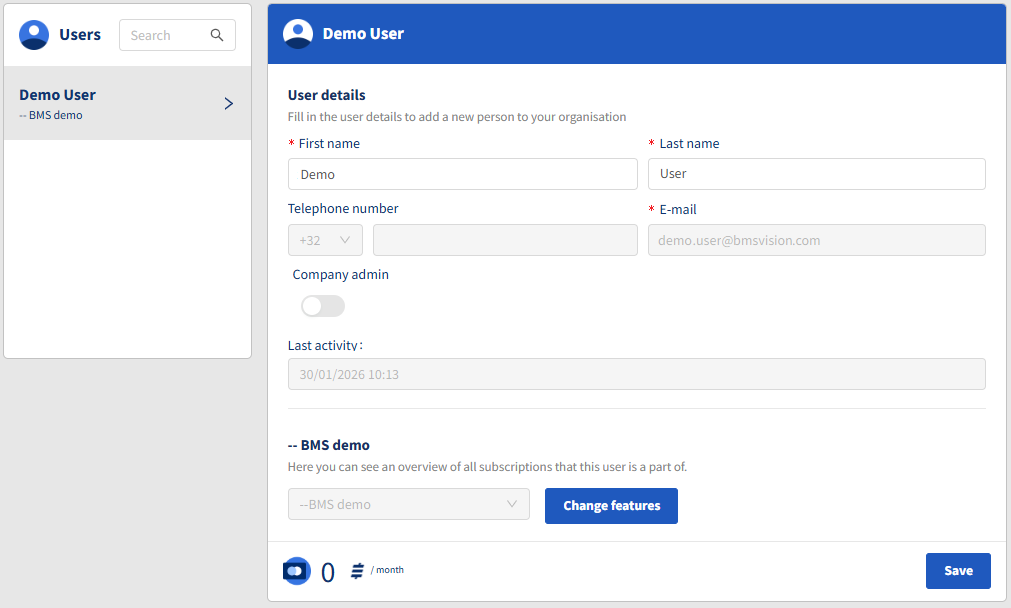
Users
Click a user to see the User details and the subscriptions the user is part of.
Administrators can edit user details and change the user's features for each subscription.
Machines
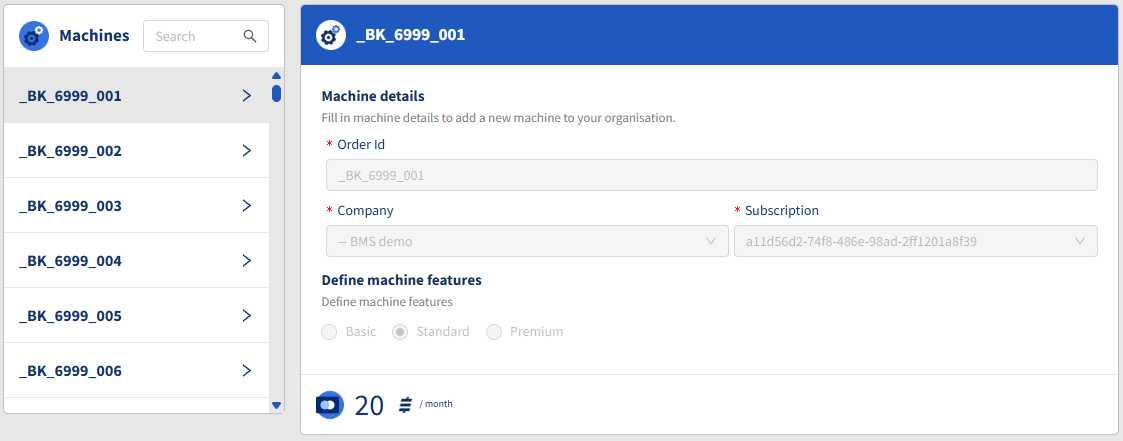
Click a machine to see following information:
- Order Id of the machine.
The prefix defines the machine type: _BPL = plastics, _BW = weaving, _BPR = preparation, _BK = circular knitting, _BI = inspection, _BTU = tufting, EX = extrusion, F = jacquard, TU = tufting, V = carpet/velvet, _SD = Sedo dyeing, _SW = Sedo winding
The number uniquely identifies the machine. - Company and Subscription the machine is part of.
If a machine should be moved to another company or subscription, contact BMSvision via a ticket (see How to create a ticket). - Machine features: Determines the Connect feature level of the machine.
Wallets
Click a subscription to see more information about the financial side of your Connect account. Select a subscription to see this information.
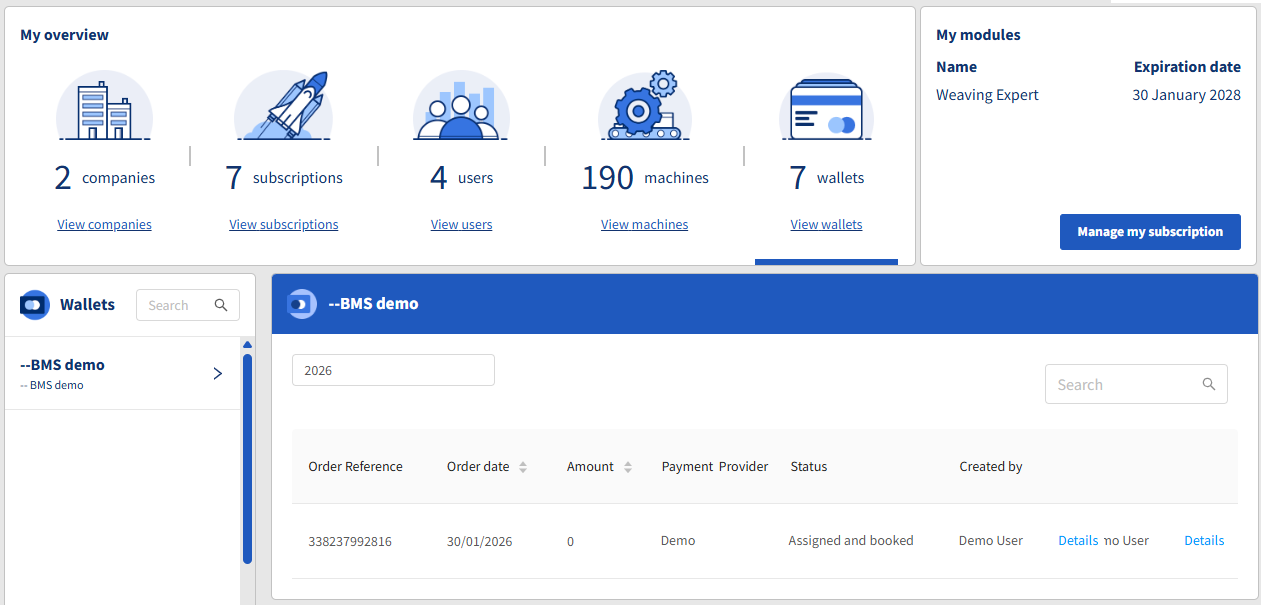
If you use credits, then you will see:
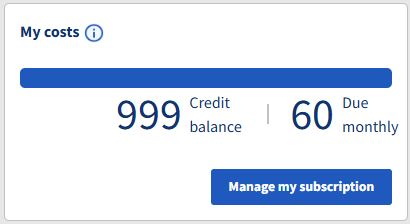
- Credit balance: How many credits remain in your wallet.
- Due monthly: How many credits are used per month by the selected subscription.
Click to see the credit use of the components of your subscription.