
Connect administrators can manage users in their companies and subscriptions via the Connect Admin module (https://admin.texconnect.io/).
Administrators can:
- Add a user to a subscription of a company where they are administrator.
- Add a user to a subscription in another company where they are administrator.
- Add an existing user to another subscription in the same company.
- Change user details and change a normal user into a subscription administrator and vice versa.
- Remove a user.
Users receive an invitation e-mail when they are added to a subscription.
Company administrators can view all subscriptions without having to be a member of each subscription.
Important: If the only administrator of a subscription leaves the company, make sure to assign a new administrator before the person’s e‑mail address is deactivated. Otherwise, you may lose access to administrative functions for that subscription.
For a general description of the Connect Admin module, see the article Getting started.
Adding a new user
Administrators can add a new user to a subscription of a certain company:
- Click New user (bottom right side).
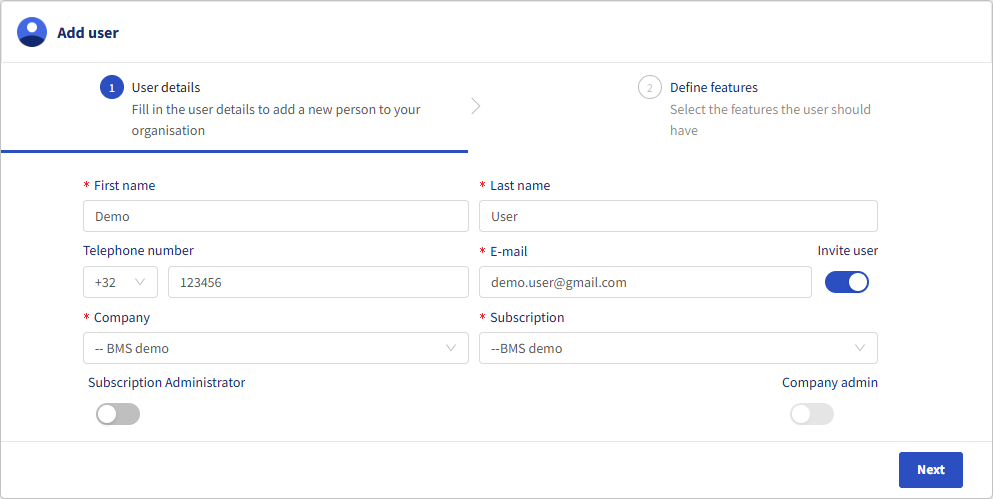
- Enter the required user information (marked *).
- If Invite user is selected, the user will receive an invite e-mail. If you switch this off, don't forget to inform the user in another way.
- Select the Company and then the Subscription that the user needs.
- Check if the user is a Subscription administrator, Company administrator, or both.
- Subscription administrators can add users to subscriptions. There can be several subscription administrators in a company.
- Company administrators can create other subscriptions. There is only one company administrator, who is designated at the start up of the Connect account.
- Click Next.
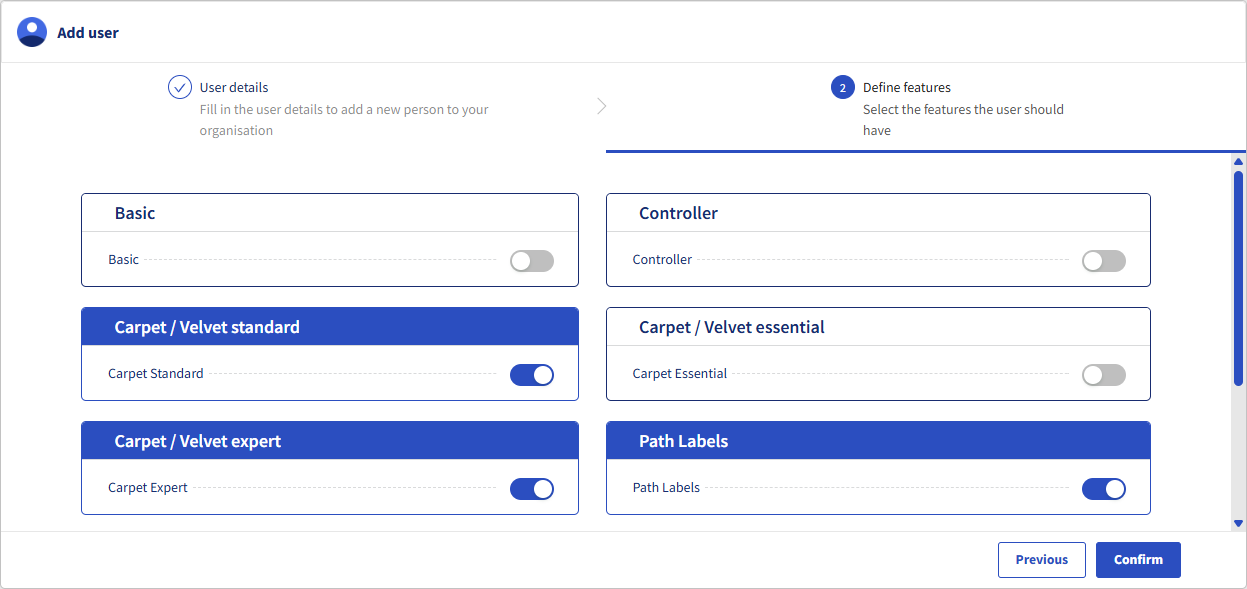
- Select the features that the user needs. These are all features that are included in the contract between your company and BMSvision.
- Click Confirm.
Adding an existing user to another subscription in the same company
This can only be done by administrators. The user must first be added like described above.
- Either do one of the following:
- In the Companies view, select View details for the subscription.
- In the Subscriptions view, select a subscription.
- In the Users section, you see yourself and other users that are already added. Subscription administrators are marked with a star
 .
.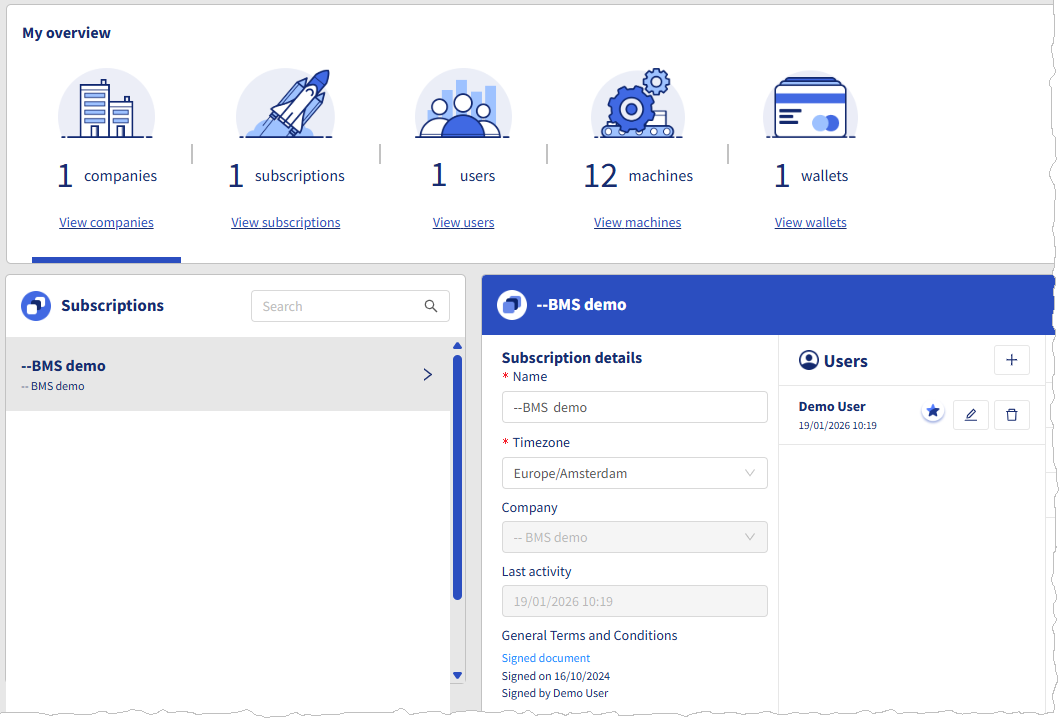
- Click the Add user button
 .
.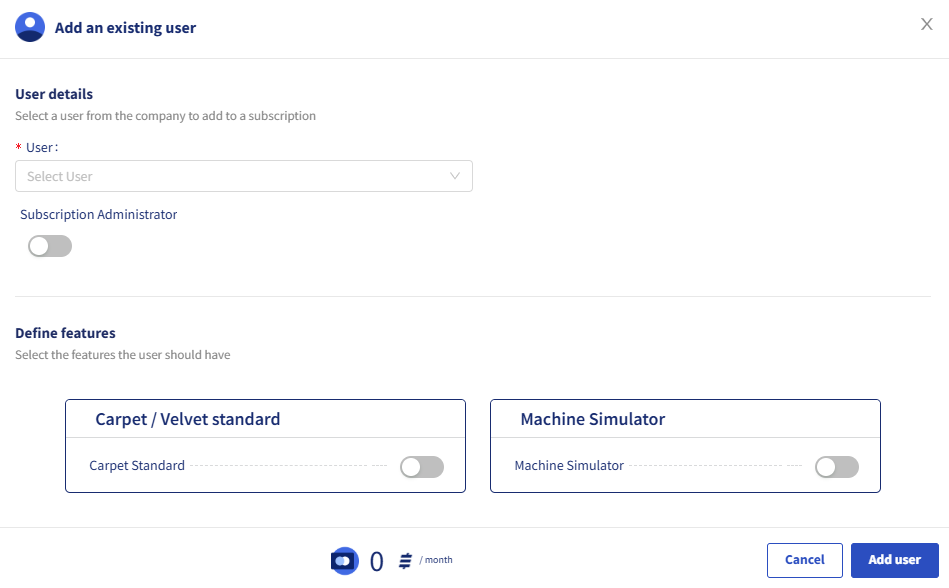
- Select a User.
- If the user is a Subscription administrator, select this.
- Select the features the user should have.
- Click Add user.
Adding a user to a subscription in another company
This requires the creation of a new user like described above.
Changing user details
To change the details of a user or to review the features they should have, click the Edit button  of the user.
Here you can change a normal user into a subscription administrator and vice versa.
If you need to change the company administrator, contact BMSvision via a ticket (see How to create a ticket).
Removing a user
To remove a user, click the Delete user button  of the user.
Attention: Take care not to remove yourself.