The Patterns module is part of the Calendar system (under RESOURCES). See the Calendar article for a description of the Calendar system.
A shift pattern is a recurring structure of one or more shifts over a number of days, and starts on a specified time. Optionally, breaks can be added to each shift to specify when work pauses occur.
Example: A workweek of seven days with a morning and evening shift and a weekend only shift.
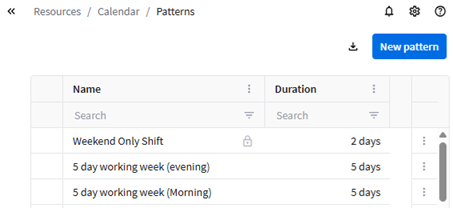
Creating patterns
To create a shift pattern:
- Click the New pattern button.
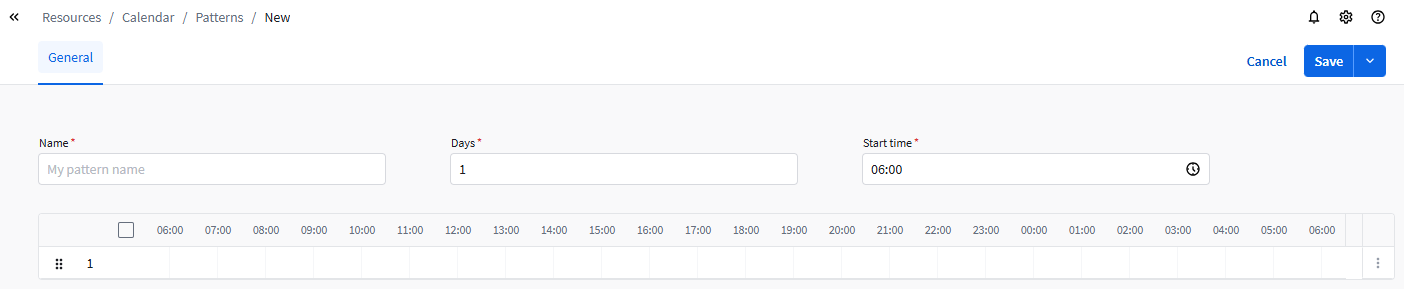
- Enter the Name of the pattern.
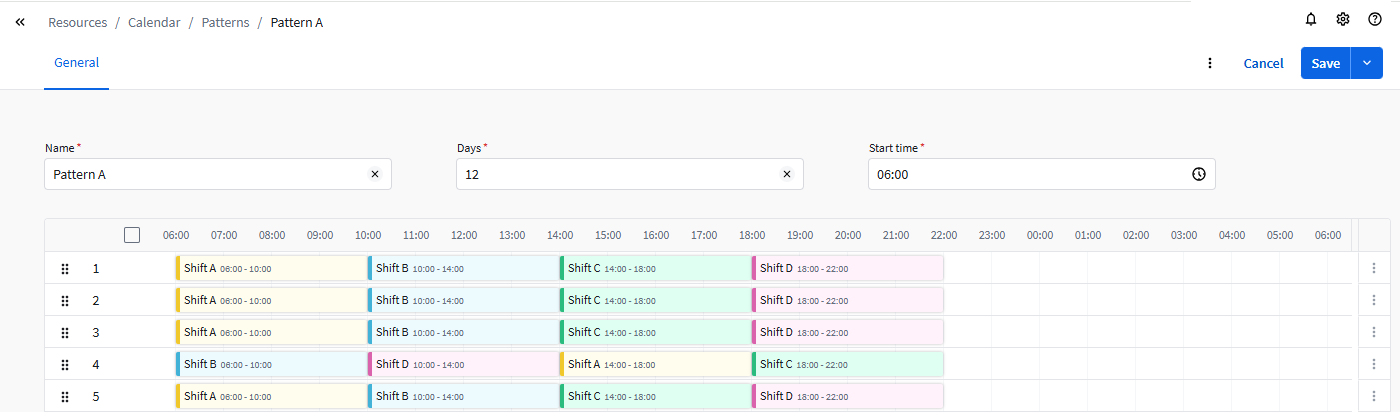
- Enter the number of shift Days in the pattern. The table will expand to the number of days that you selected.
- Select the Start time when this pattern will begin the first day.
The time bar will show this time on the left side.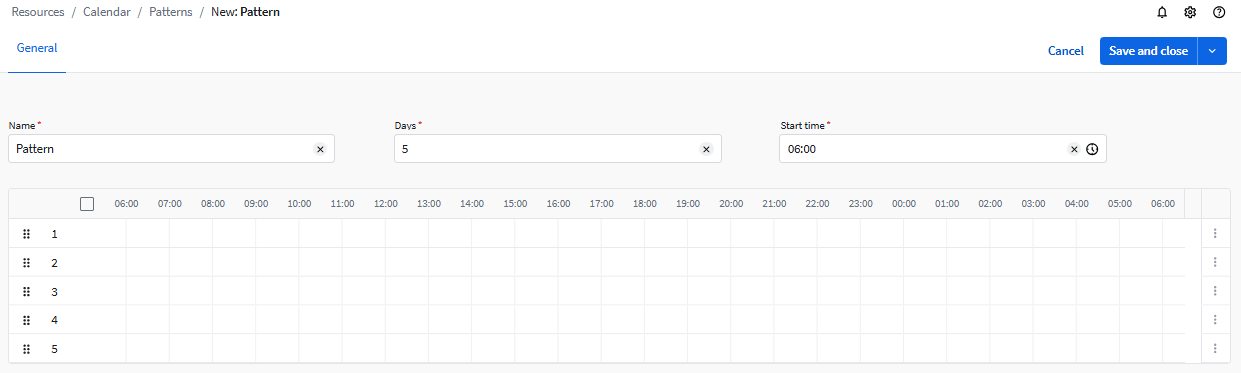
- To add a shift to a day, click the + button.
 The Add shift dialog appears.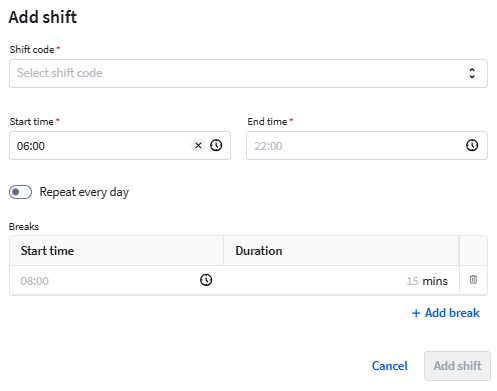
- For each shift:
- Select a Shift code.
- Enter its Start time and End time of the shift.
- If the shift should occur on multiple days in the pattern, enable Repeat every day. This copies the shift to all days. You can then remove it from any days where it should not occur.
- Optionally define Breaks by setting their Start time and Duration.
- Click Add shift.
Example result:
Editing the pattern
Patterns that are not yet used can be edited. To edit the pattern, following actions are available:
- To reorder the day sequence, click and hold
 and move a day.
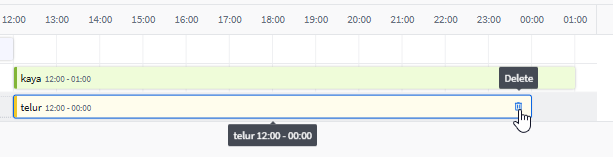
 - To delete the shift, hover it and click the Delete button.
Locked patterns
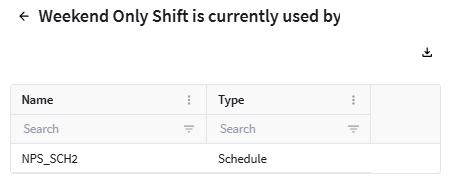
A lock icon  next to the name indicates that the pattern is already used in Schedules. It cannot be changed nor deleted. To see for which Schedules the pattern is used, click the lock icon. Example: