
Each report type in the Trends & reports module comes with a default report view. You can customize its settings, or save your own private report views to quickly return to specific configurations.
For example, if you regularly check yesterday's production for specific machines, you can select the machines, set the filter to ‘Previous day', and save it as a custom report view. When you open the view again, Connect applies your saved filters and displays the latest data. You can also favorite your most-used report views to access them directly from the top of the menu.
Managing report views
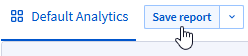
- To update a report view after making changes, click Save report.
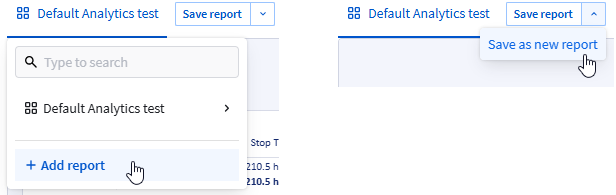
- To create a new report view with the current report settings, either click the report tab and then Add report, or click the down arrow and then Save as new report.
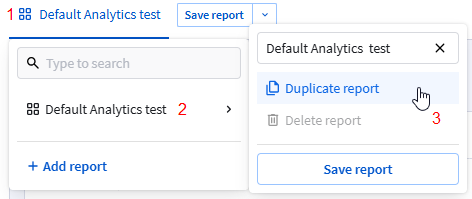
The default name is the same as the selected page. - To duplicate a report view, click the report tab (1), point to the report name (2), click Duplicate report (3).
Next rename the duplicate, change its settings and save. - To rename a report view, click the report tab (1), point to the report name (2), click the name box to edit the text (3) and click Save report (4).
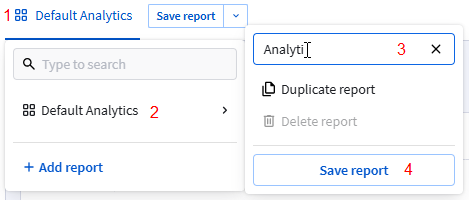
Report views cannot have the same name within a report type. - To delete a report view, click the report tab (1), point to the report name (2), click Delete report (3).
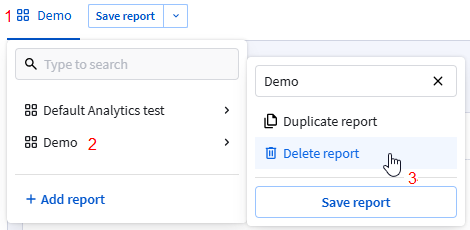
You cannot delete a report view if it is the only one.
Using report views
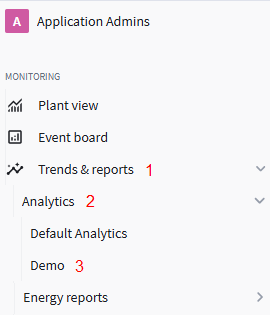
- To open a report view, open Trends & reports (1), then the report type (2) and finally click the report that you need (3).
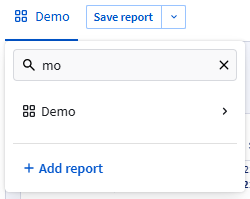
- To find a report view, click the search box and type (part of) its name.
- To favorite a report, click the star icon next to its name view in the menu.
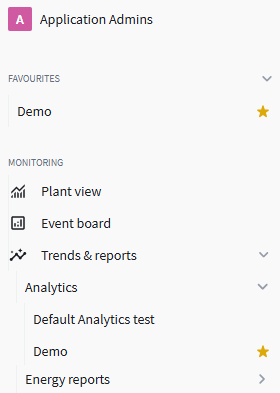
Favorited report views appear at the top of the navigation menu.