
Carpet machines use standard disk files (EP files) to perform specific machine actions such as:
- Pull-through of yarn
- Weaving out knots during creel changes
- Color changes between orders
- Yarn replacement (e.g. breakage or quality change)
- Other machine-specific operations (e.g. harness control, equalization)
A standard disk file collection is a reusable set of EP files that can be downloaded or sent to one or more machines.
Problem
On older machines, these files are stored locally and can be accidentally deleted (for example during manual cleanup or when the storage medium is formatted).
When this happens, machine operators can no longer perform these actions.
Example: An operator needs to perform a pull-through, but the required disk file is missing on the machine.
Solution
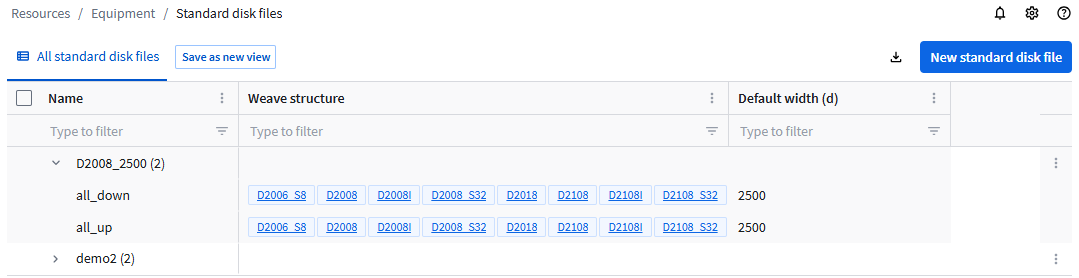
The solution is to recreate and restore these files and make them available again on the machine. This can be done with the Standard disk files module in Connect. This module is available in the menu under RESOURCES and then Equipment.
This module allows you to create standard disk file collections based on a selected weave structure, design files and machine width.
Notes:
- Existing files on the machine may be overwritten if they have the same name.
- Files currently in use on a machine cannot be overwritten.
Using the Standard disk files module
Creating standard disk file collections
To create a standard disk file collection:
- Click New standard disk file.
- In the General tab, give your standard disk file collection a Name.
- Default width:
- If the collection is meant for multiple machines with different widths, use the minimum supported machine width, or use a commonly used standard width in your plant. The system can adjust the width at send time (see step 2 below).
- If the collection is meant for one or more machines with the same width, enter that width.
You can also enter a lower width, but the machine action will only cover part of the machine width and may result in an incomplete operation.
If you are unsure, use the machine width. This ensures the action is applied across the full machine.
- Select a Weave structure. All weave structures of the same type will be selected automatically.
This selection ensures that the generated files match the technical setup of the machine and can be executed correctly. - In the Design files tab, select one or more design files.
Design files contain the pattern that is converted into machine instructions (EP files). They define what the machine will actually do. - Click Save.
Transferring files to machines
After creating a standard disk file collection, you must transfer the generated EP files to the machines.
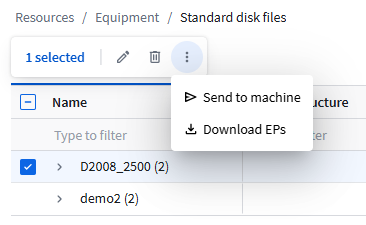
- Select one or more standard disk file collections.
- Click More actions
 and choose one of the following options:
- Use Send to machine to transfer the EP files to all machine types except basic machines (see Machine features in the Connect Admin).
- Use Download EPs to transfer EP files to basic machines and to machines that are not available in Connect. This option can also be used for other machine types that support USB EP file upload.
Send to machine
The system shows all machines that are compatible with the selected standard disk file collections.
- Step 1: Select one or more machines.
- Click Confirm selection.
- Step 2: Select the width to generate the standard disk file collection:
- Select Standard disk file width to use the default width that was entered for the standard disk files collection.
- Select Machine width to let Connect adapt the default width that was entered for the standard disk files set to the machine width.
To follow up the adaptation of the EP files, see the Processes module.
- Click Send to machine to transfer the EP files to all selected machines.
Download EPs
This option is available if only one standard disk file collection is selected. The Default width, entered for the standard disk file collection is used.
- Click Download EPs to download a ZIP file with the EP files to your computer.
- Copy the contents of the ZIP file to a USB stick.
- Put the USB stick in the machine.
- Import the files. Refer to the machine documentation for instructions.