The technical dimensions of a design may change (e.g. due to yarn changes) while the commercial dimensions remain identical. The design can be updated in ERP (by using PUT). Depending on the stage where the design is used, we have following situations:
The design is ... | Production order shows | Changeable design properties |
|---|---|---|
| ... not used in an article nor production order. | - | All properties of the new design version. |
| ... used in an unplanned order line but not in a production order. | - | All properties of the new design version. Will also change order line properties. |
| ... used in a confirmed production order. | Old design version | Only technical dimensions and the image of the old design version. |
| ... used in an unconfirmed production order. | You can choose to use the old or new version. See instructions below. | See below. |
| ... used in decreated production order. |
Note:
Before version 5.65.0, when a design was updated via ERP, Connect automatically applied the new design version to all production orders that were not yet confirmed.
From version 5.65.0 onwards, the user decides whether or not the new design version is used. The order line however will always show the latest dimensions and design version.
When you open an unconfirmed production order (Production order module) or confirm a production order in the Planning board, Connect automatically checks whether the dimensions of any of its designs have been updated in ERP. If one or more designs have changed, Connect displays a popup listing the changed designs.
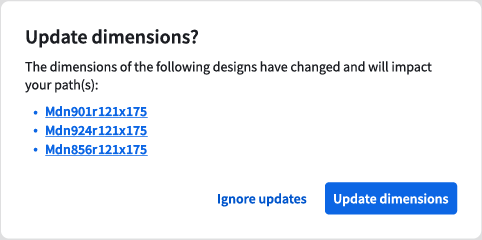
Ignore updates
Use this when the existing design version is still valid for this production order.
What happens next? | The production order is opened. |
What should you do? | Continue processing and planning the production order as usual. (see the article Carpet order module overview) |
Note: You can still remove the old designs and insert the new design manually.
Update dimensions
Use this when the old design version cannot be used.
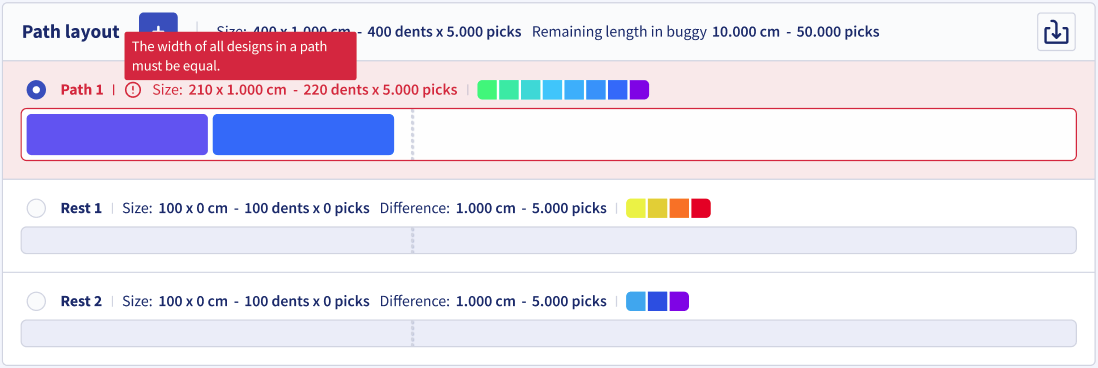
What happens next? | In the Build step of the production order, the paths that contain the changed designs get a red border if not all designs in the path have an equal width. You can read the error description by hovering the exclamation icon |
What should you do? | You have two options:
|
 . The background also turns red if the path is selected.